Understand an AI code change before you accept it
Cursor, Claude Code and Copilot can change several files in the time it takes you to read one. The agent's summary tells you what it meant to do; the diff is what it did. Before you accept or commit, you should be able to say what each changed line does and what it changes for the code that calls it.
Unvibe does not write code. Select what the agent wrote, press Control+U (Ctrl+Alt+U on Windows), and Vibe explains it in plain English beside your editor.
A worked example
You ask an agent to add retries to a function that loads a user. This is the diff it hands back:
 export async function fetchUser(id: string): Promise<User> {
-  const res = await fetch(`/api/users/${id}`);
-  return res.json();
+  for (let attempt = 1; attempt <= 3; attempt++) {
+    try {
+      const res = await fetch(`/api/users/${id}`);
+      if (!res.ok) throw new Error(`HTTP ${res.status}`);
+      return await res.json();
+    } catch (err) {
+      if (attempt === 3) throw err;
+      await new Promise((resolve) => setTimeout(resolve, 200 * attempt));
+    }
+  }
+  throw new Error("unreachable");
 }
The notes below are written by hand to show what a careful read finds. They are not output from Unvibe.
- It changes more than retries. The new
if (!res.ok)line turns every 404 or 500 into a thrown error. Before, the function returned whatever the server's error body parsed to, so a caller that checked the result for an error field now gets an exception instead. - It retries errors that will not go away. A user that does not exist now costs three requests and 600 milliseconds of waiting (200, then 400) before the caller hears about it.
return await res.json()is deliberate. Without theawait, a body that fails to parse would reject outside thetryblock, and thecatchwould never see it.- The last line,
throw new Error("unreachable"), never runs. It is there because TypeScript cannot tell that the loop always returns or throws. - Retrying is safe here because the request only reads. The same loop around a request that creates an order or charges a card could do it more than once.
None of this makes the change wrong. It makes it a bigger change than the one you asked for. Before you accept it, decide whether a 404 should be retried and whether the callers expect an exception.
What to check in an AI diff before you accept it
- Read the diff, not the agent's summary of it.
git diffshows unstaged changes,git diff --stagedshows what you staged, andgit diff --statlists which files changed and by how much. - Check that it stays inside what you asked for. Note every file or line you did not expect: reformatting, renamed variables, deleted comments, edited config or lockfiles.
- Look for changes the callers will feel: a new exception, a different return value or type, a changed default, a removed parameter.
- Walk the failure paths: an error response, an empty list, a missing value, a timeout. A quick read follows the path where everything works.
- Check the tests. A deleted test, a new skip or an assertion loosened until it passes means that test no longer checks what it used to.
- Check every new import and dependency. Make sure the package exists, is the one you meant and is needed at all. AI tools sometimes name packages that do not exist.
- Search the diff for keys and tokens, debug logging, hard-coded URLs and leftover TODO comments.
- Run it. Run the tests, then try the changed path yourself, including one way it can fail.
- If you cannot explain a line, do not accept it yet. Ask about it, or ask the agent for a smaller change.
Doing it with Unvibe
- Select the changed function in your editor, or the output of
git diffin Terminal. Unvibe works in any app where you can select code, including Cursor, VS Code and Terminal. - Press Control+U on a Mac or Ctrl+Alt+U on Windows. The panel opens beside your editor and the explanation streams in as it is written.
- Pick a depth. New, Beginner, Intermediate and Advanced are free; Expert is part of Pro. Switch any time and the same code is explained again at that depth.
- Type a follow-up under the explanation, such as “What happens to callers when the API returns 404?” The answer stays about the code you selected.
- Press Test me. It writes a question about this exact code, and up to three if you want more. Miss one and the lesson is saved to revisit later.
For a change across several files, Briefs list what changed in your working tree, staged files, the latest commit or a branch. Briefs are made on your computer for free; the AI explanation of a change is Pro. When an agent changes many files, After-Agent Review in Briefs ranks the change by what deserves a human look, on your computer; the AI explanation of that change is Pro.
Yes. AI can be wrong even when it sounds sure. Each explanation sits next to the code it describes so you can check it, and Test me helps you spot what doesn't add up.
What leaves your computer
The code you select is sent to a cloud model to write the explanation. Only what you ask about: the selected code and its language, the file's path inside your project when Unvibe knows which file it came from (like src/lib/retry.ts), and the name of the project folder you last worked in with Unvibe. With Pro, some nearby code is added for context, and Briefs send the git changes you ask the AI to explain. Any question you type is sent too. Unvibe checks the code for keys and tokens on your computer first, and from version 0.1.44 your questions and Ask Vibe chat messages too. A known key stops the request. Your repo is never uploaded. If you add your own API key in Settings, the app sends the request straight to that provider instead.
Free and Pro
Free. 50 explanations in your first 30 days without signing in, then 50 explanations a month when you sign in. No card and no separate API key.
- Explain code you select in any app
- New, Beginner, Intermediate and Advanced depths
- Follow-ups and Test me
- Lessons saved to your Library
- Briefs of your Git changes, made on your computer
- “Why does this exist?” from your Git history
- Your code checked for keys and tokens on your device
Pro, $9 a month or $81 a year. One developer account. Your Free plan keeps working until then.
- Everything in Free
- Expert depth
- AI explanations of Git diffs and change Briefs
- Answers that use nearby files
- 200 AI explanations a month
Explain code beside your editor
Unvibe is a free app for Mac and Windows. In the app there is no pasting: select code in any app and press Control+U (Ctrl+Alt+U on Windows).
Install on Mac
curl -fsSL https://unvibe.site/install.sh | bashPaste into Terminal. Unvibe isn't notarized by Apple yet, so this is the smooth path.
Or download the .dmg · Intel Mac build · SHA-256 checksums
Opening the .dmg the first time
- Open the .dmg and drag Unvibe to Applications.
- Open it once; macOS says it can't verify it. Click Done.
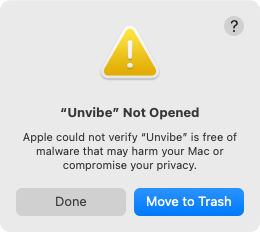
Real screen, macOS 15 - System Settings › Privacy & Security › Open Anyway. Confirm, then enter your Mac password. The button shows for about an hour after you try to open Unvibe.
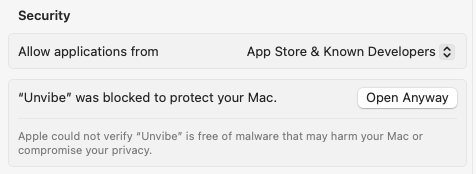
Real screen, macOS 15
The Terminal line checks the download against the published SHA-256 and Unvibe's self-signed signature before it installs anything. More help with the first open